Sortable Category Tabs: A Complete Guide

Table of contents

The Sortable Category Tabs feature allows users to easily organize and navigate through different categories in your price list. This feature improves accessibility and user engagement by providing a streamlined browsing experience. 

Want to see this feature in action? Live Preview

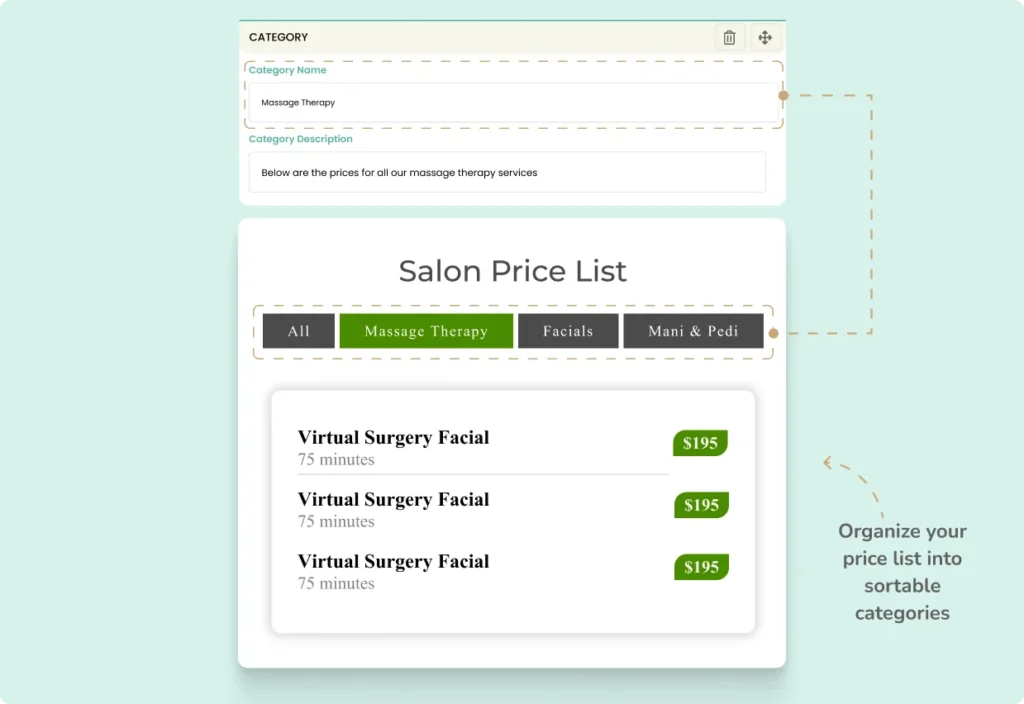
Sortable Category Tabs

Benefits, Features & Use Cases

Benefits & Features

  • Improved User Experience: Simplifies navigation, making it easier for users to find what they need.  
  • Customizable Tabs: Organize categories into sortable tabs for easy navigation. 
  • Responsive Design: Ensures smooth operation on both desktop and mobile devices. 
  • Quick Access: Users can quickly find the category they are interested in. 

Use Cases

  • E-Commerce Stores: Organize products into sortable categories for better browsing. 
  • Service Providers: Categorize different services for easy client navigation. 
  • Restaurants: Separate menu items into distinct categories like appetizers, main courses, and desserts.

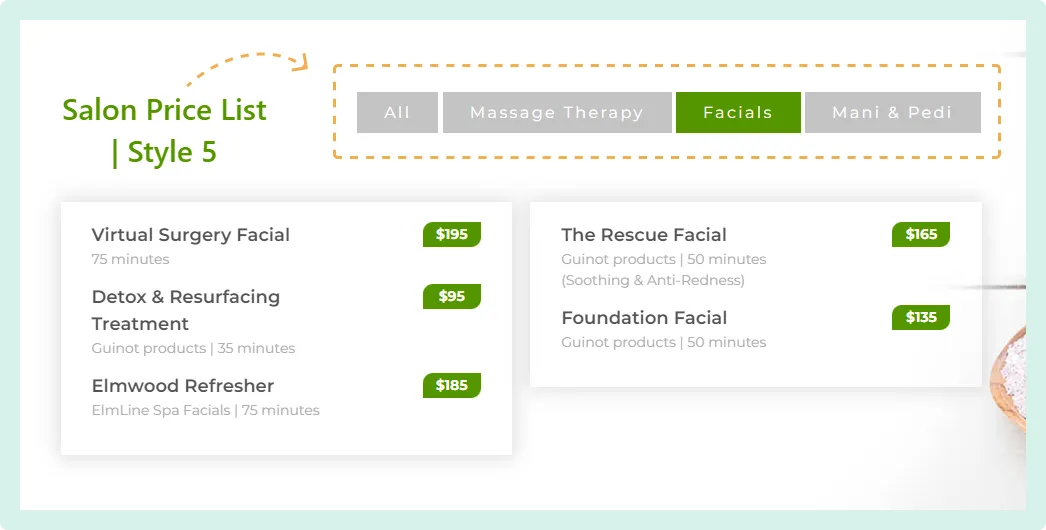
What It Looks Like

Front-end

Back-end

How to Activate & Use This Feature

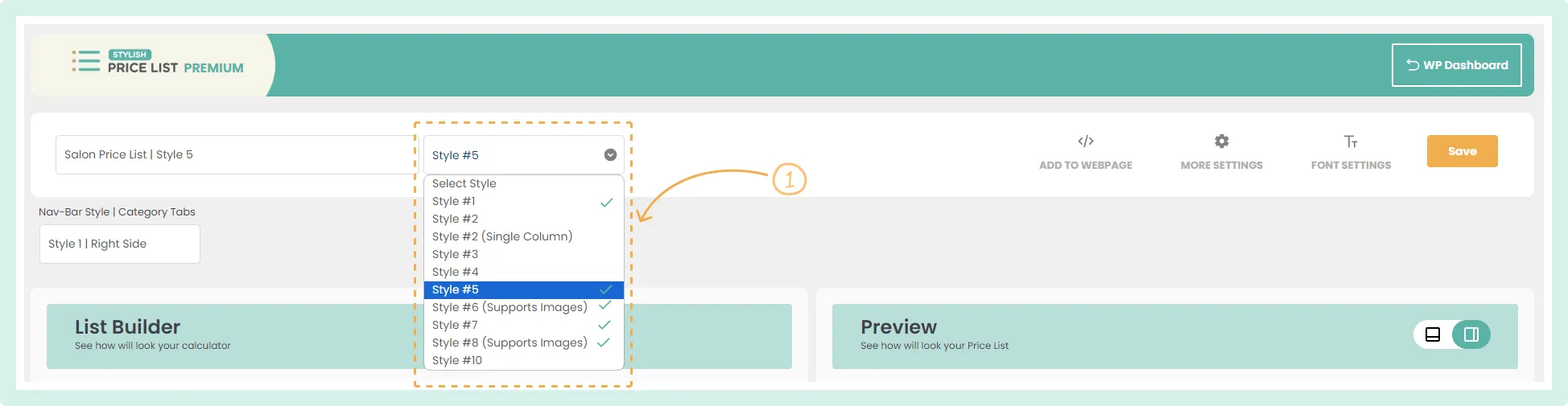
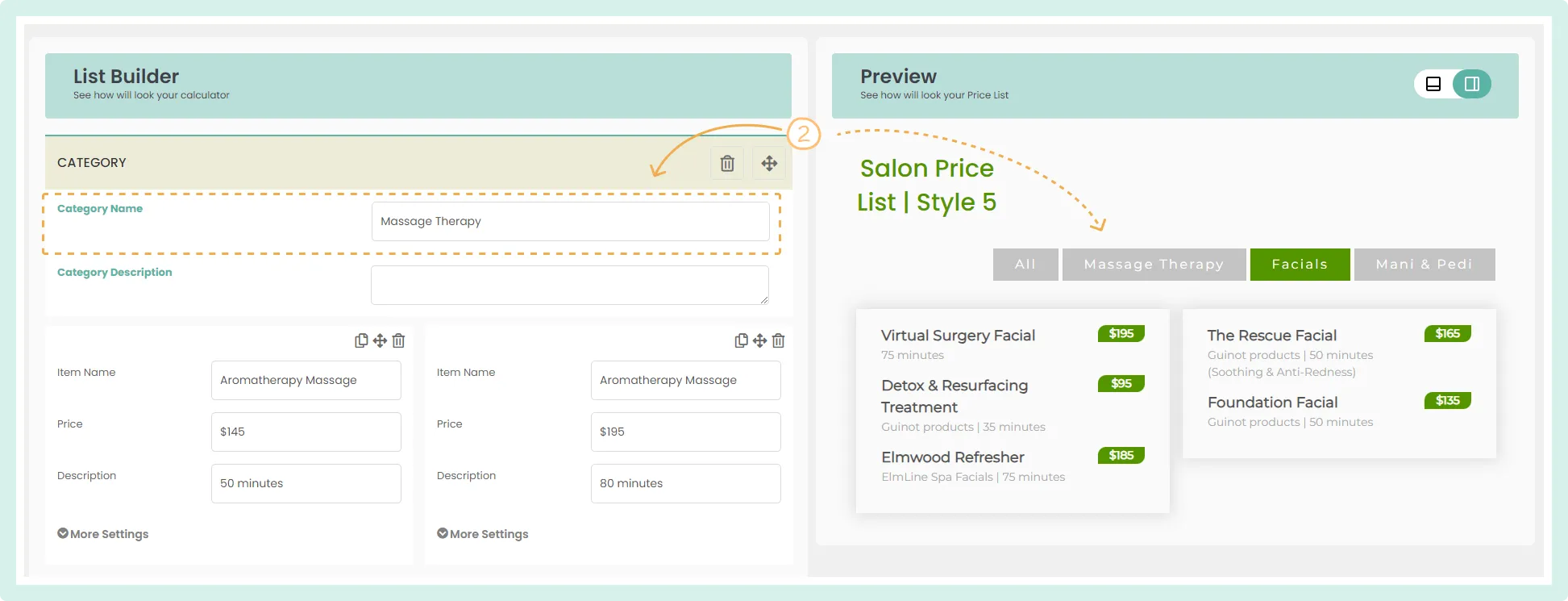
1. Select a Compatible Style

Choose a style that supports sortable category tabs: Style #1, Style #5, Style #6, Style #7, or Style #8

2. Add Category Titles

Enter the title for each category. The tabs will be created automatically based on the titles you add.

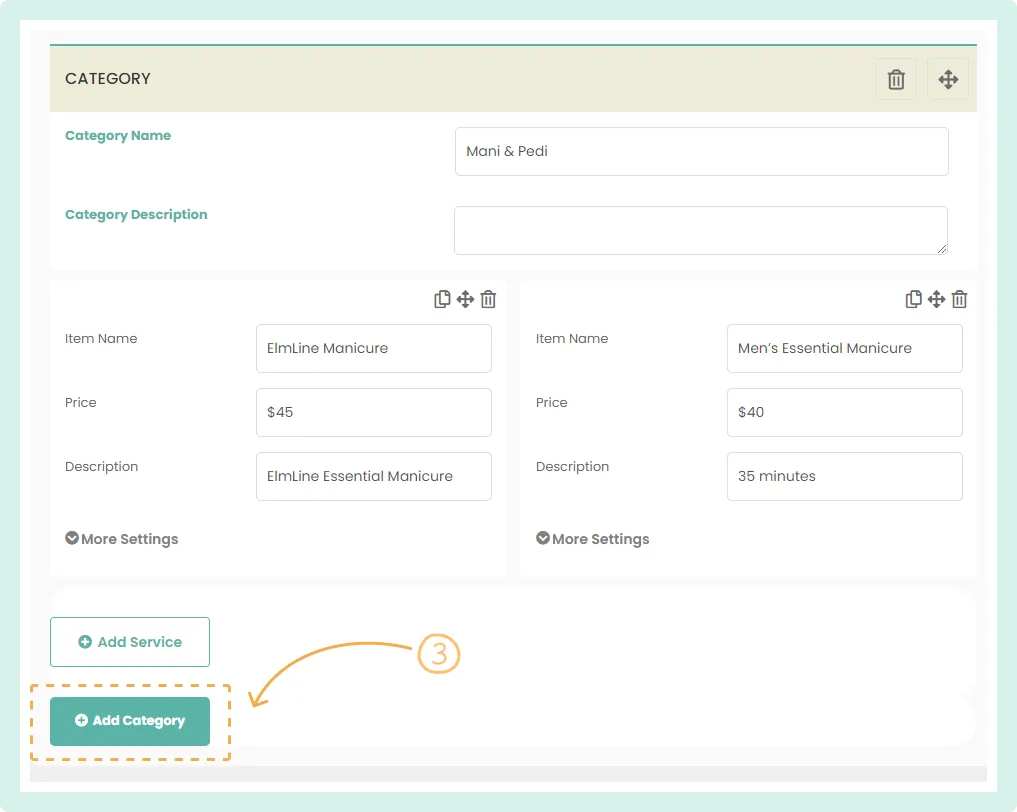
3. Add More Categories

Click the “Add Category” button to include additional categories. You can add as many as you need. 

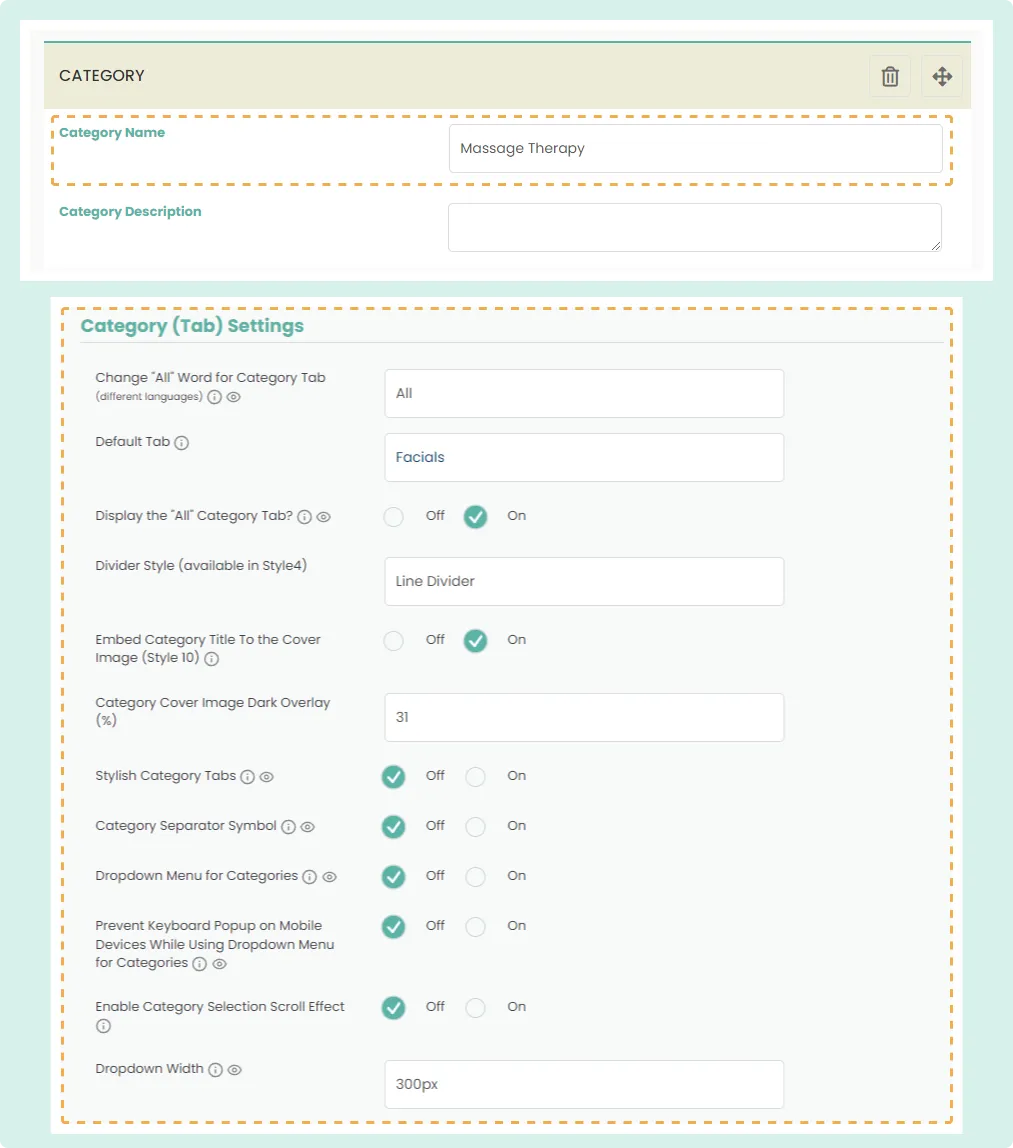
Settings & Options

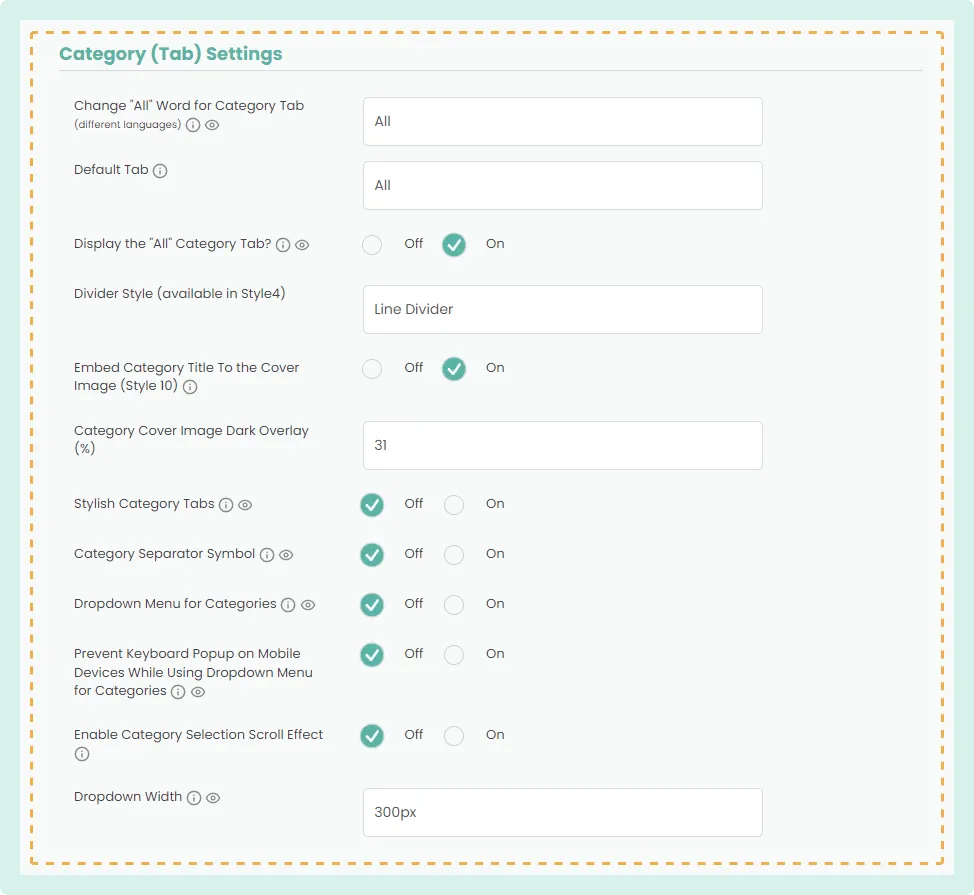
To access these settings, go to “More Settings”: 

  • Change “All” Word for Category Tab: Customize the word used for the “All” tab.

  • Default Tab: Set the default category tab that appears first.

  • Display the “All” Category Tab: Toggle the visibility of the “All” tab.

  • Divider Style: Choose a style for the category dividers.

  • Embed Category Title to Cover Image: Embed the category title directly onto the cover image (Style 10).

  • Category Cover Image Dark Overlay: Adjust the darkness overlay percentage on cover images.

  • Stylish Category Tabs: Enable stylish tabs for a better visual experience.

  • Category Separator Symbol: Toggle the separator symbol between categories.

  • Dropdown Menu for Categories: Enable a dropdown menu for category selection.

  • Prevent Keyboard Popup on Mobile Devices: Disable keyboard popup when using the dropdown menu on mobile.

  • Enable Category Selection Scroll Effect: Enable scrolling into view of the price list while switching between categories.

  • Dropdown Width: Set the width of the dropdown menu.
Sortable Category Tabs Settings and options

Frequently Asked Questions (FAQs)

Q: How can I customize the tabs?

  • Depending on the selected style, each comes with a distinct design. Choose the one you like best. 

Q: Can I change the font style and size of the tabs?

  • Yes, in the “Font Settings” section, you can customize the font style and size for the category tabs. 

Table of contents

Build Beautiful Price Lists with WordPress

Create professional price lists, restaurant menus, and service catalogs in minutes. Drag & drop builder, mobile-friendly, QR code ready. Trusted by spas, salons, restaurants, and 2,500+ businesses worldwide.