Search & Filter – A Complete Guide

Table of contents

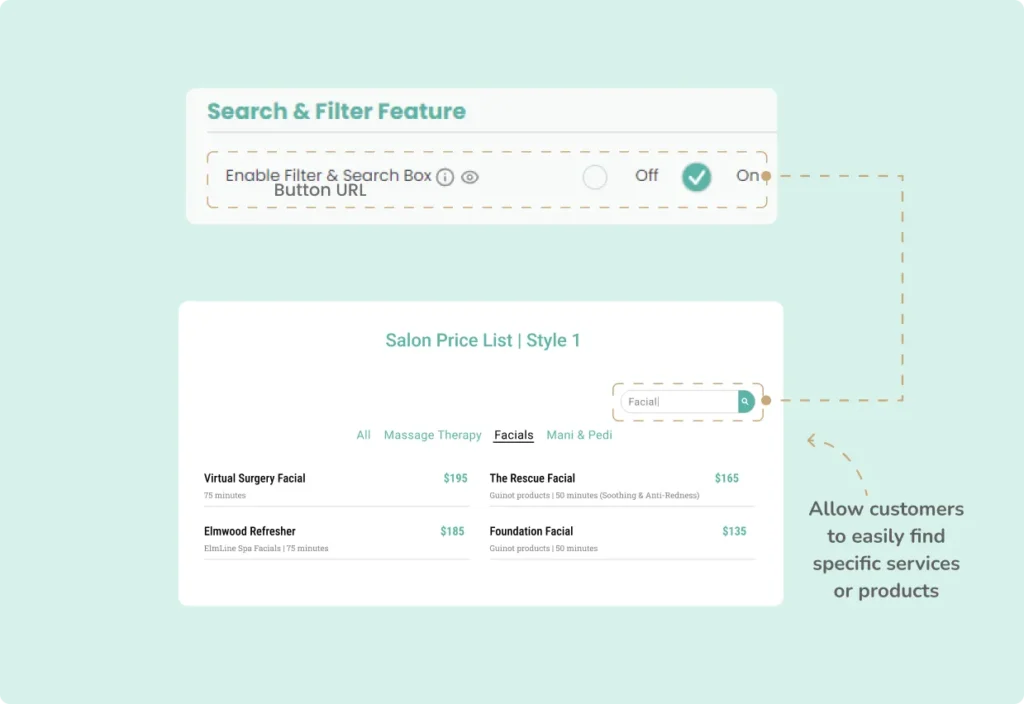
The Search & Filter feature in the Stylish Price List plugin enhances user navigation, allowing quick access to specific items in extensive price lists. This functionality is vital for improving user experience and driving customer engagement.

Want to see this feature in action? Live Preview

The Search Filter feature

Benefits, Features & Use Cases

Benefits & Features

  • Enhanced User Experience: Users can quickly find what they need without scrolling through long lists.
  • Increased Conversion Rates: By making it easier to locate products, the likelihood of completing a purchase is higher.
  • Efficient Management: Administrators can better organize and manage large inventories.

Use Cases

  • Retail Stores: Customers can quickly search for specific products, streamlining the shopping experience.
  • Salons: Clients can easily find and compare different services offered.
  • Fitness Centers: Members can locate various fitness plans and class schedules efficiently.

What It Looks Like

Front-end

The Search Filter feature Frontend

Back-end

The Search Filter feature Backend

How to Activate & Use This Feature

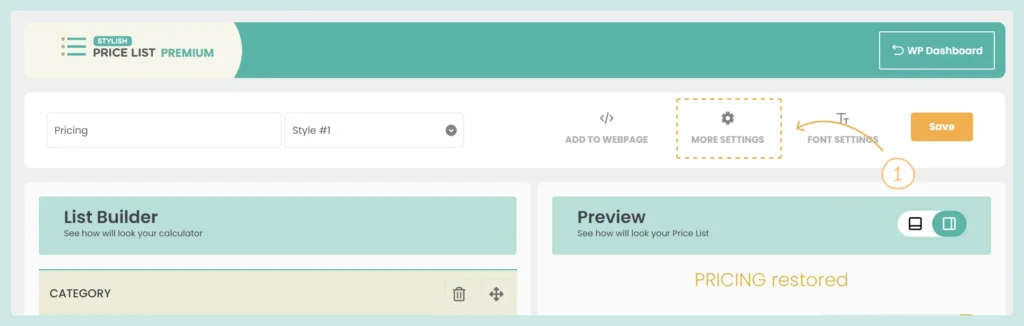
1. Access More Settings

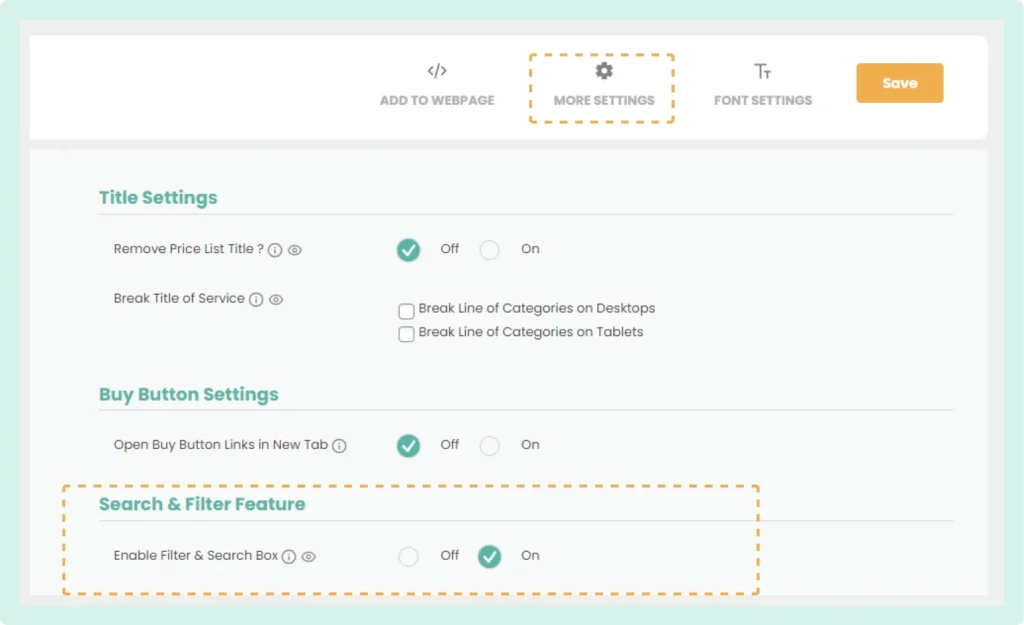
The Search Filter feature Settings

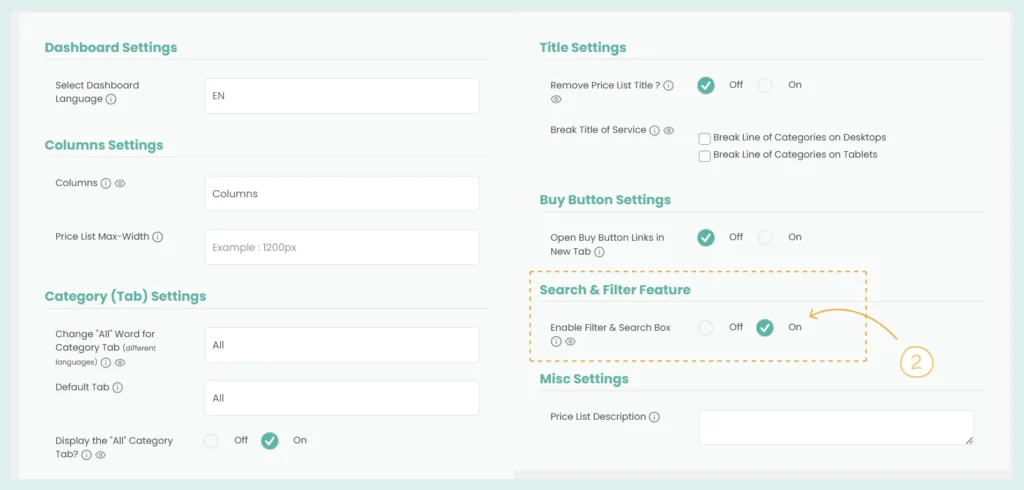
2. Enable the Search & Filter Feature

  1. Scroll down to the “Search & Filter Feature” section.
  2. Switch the “Enable Filter & Search Box” option to “On.”
Search Filter Feature Settings

3. Save Your Changes

  1. Click the “Save” button at the top right to apply the changes.

This will enable the search and filter functionality on your price list, making it easier for users to find specific items.

Table of contents

Build Beautiful Price Lists with WordPress

Create professional price lists, restaurant menus, and service catalogs in minutes. Drag & drop builder, mobile-friendly, QR code ready. Trusted by spas, salons, restaurants, and 2,500+ businesses worldwide.