Expanded Image Support: A Complete Guide

Table of contents

The Expanded Image feature in the Stylish Price List plugin allows you to add high-quality images to your price lists, enhancing visual appeal and user engagement.

Want to see this feature in action? Live Preview

Expanded Image feature

Benefits, Features & Use Cases

Benefits & Features

  • Enhanced Visual Appeal: High-quality images make your price lists more attractive and engaging.
  • Better Product Understanding: Images help customers understand products or services better.
  • Increased Sales: Visually appealing lists can lead to higher conversion rates.

Use Cases

  • Retail Stores: Showcase product images alongside descriptions and prices.
  • Salons: Display images of different services, like hairstyles or treatments.
  • Restaurants: Include photos of menu items to entice customers.

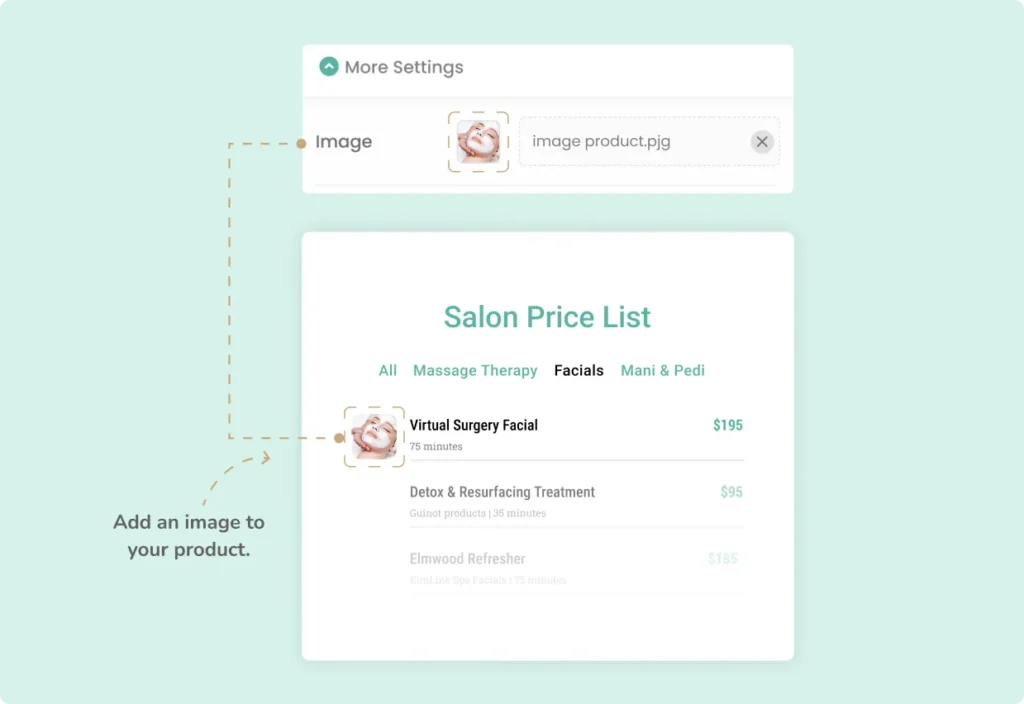
What It Looks Like

Front-end

Expanded Image feature Frontend

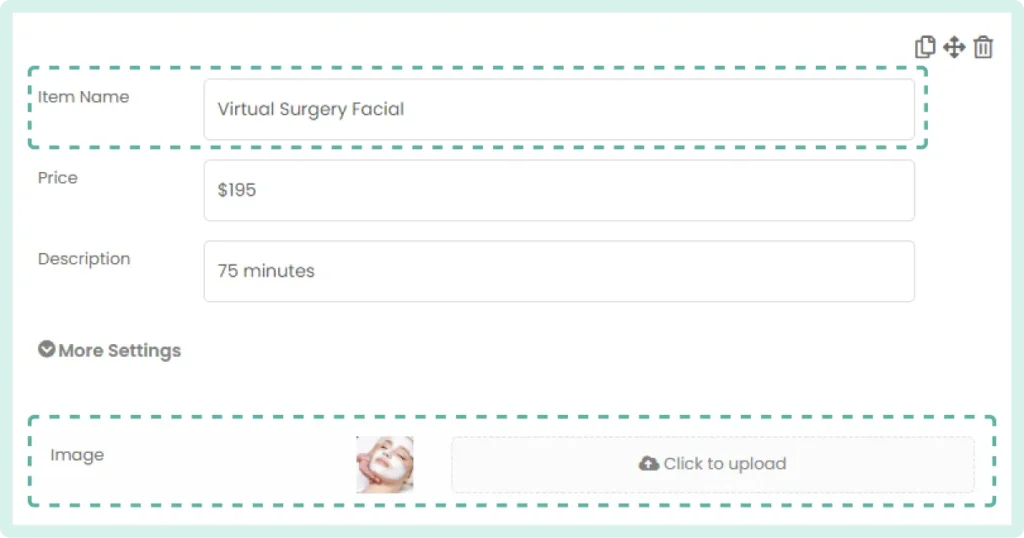
Back-end

Expanded Image feature Backend

How to Activate & Use This Feature

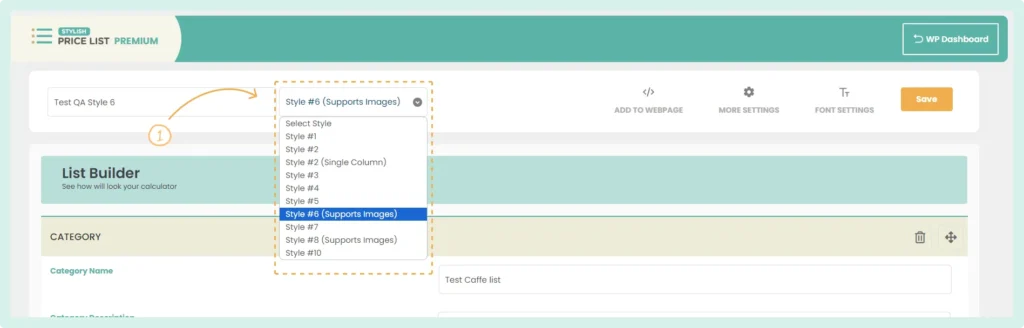
1. Select the Appropriate Style

In the List Builder, choose a price list style that supports images (currently Style #6 and Style #8).

Expanded Image feature Style

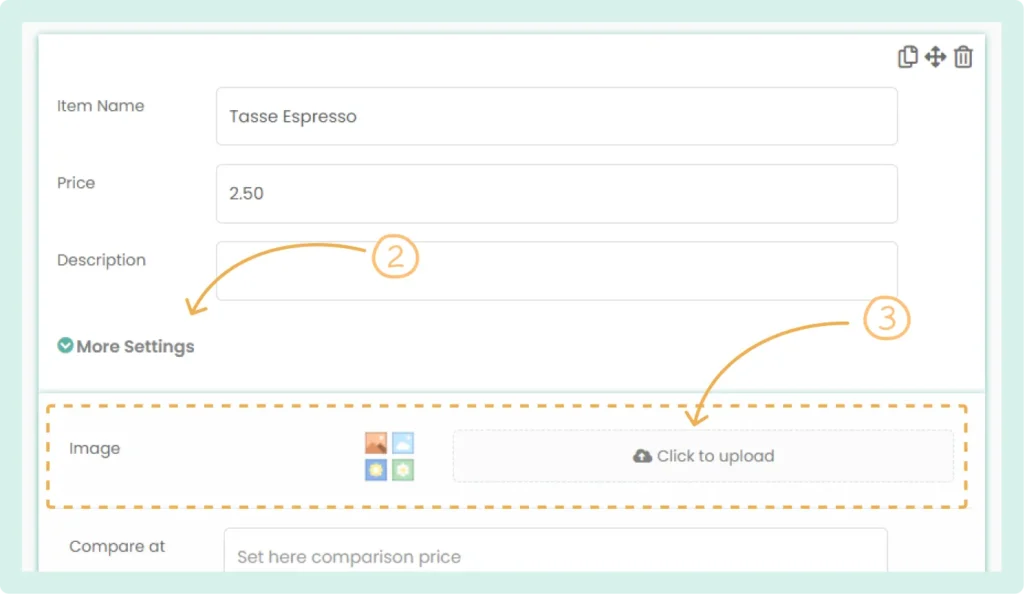
2. Locate the Item

Find the item in your list where you want to add an image and then Click on “More Settings” for the selected item.

3. Upload the Image

In the image upload field, click “Click to upload” and select the image you want to add. 

Expanded Image feature More Settings

4. Save Changes

Click “Save” to apply the changes. 

Frequently Asked Questions (FAQs)

Q: What image formats are supported for upload?

  • Supported formats are JPG and PNG. 

Table of contents

Build Beautiful Price Lists with WordPress

Create professional price lists, restaurant menus, and service catalogs in minutes. Drag & drop builder, mobile-friendly, QR code ready. Trusted by spas, salons, restaurants, and 2,500+ businesses worldwide.