Compare At Price Feature: A Complete Guide

Table of contents

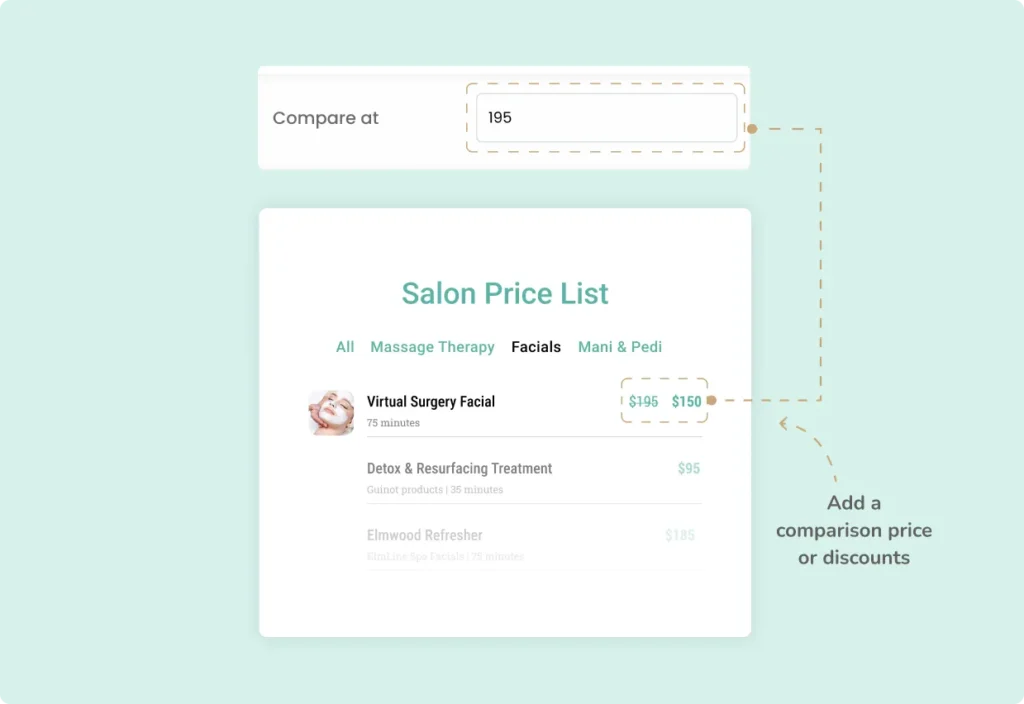
The Compare At Price feature in the Stylish Price List plugin allows you to display a regular price alongside a discounted price, making it easy for customers to see the savings. 

Want to see this feature in action? Live Preview

Compare At Price Feature

Benefits, Features & Use Cases

Benefits & Features

  • Highlight Discounts: Clearly show the difference between original and discounted prices.
  • Increase Conversions: Attractive savings can encourage more purchases.
  • Enhanced Transparency: Builds trust by providing clear pricing information.

Use Cases

  • Retail Stores: Show original and sale prices for products.
  • Service Providers: Display regular rates versus promotional rates.
  • Restaurants: Highlight special offers on menu items.

What It Looks Like

Front-end

Compare At Price Feature Frontend

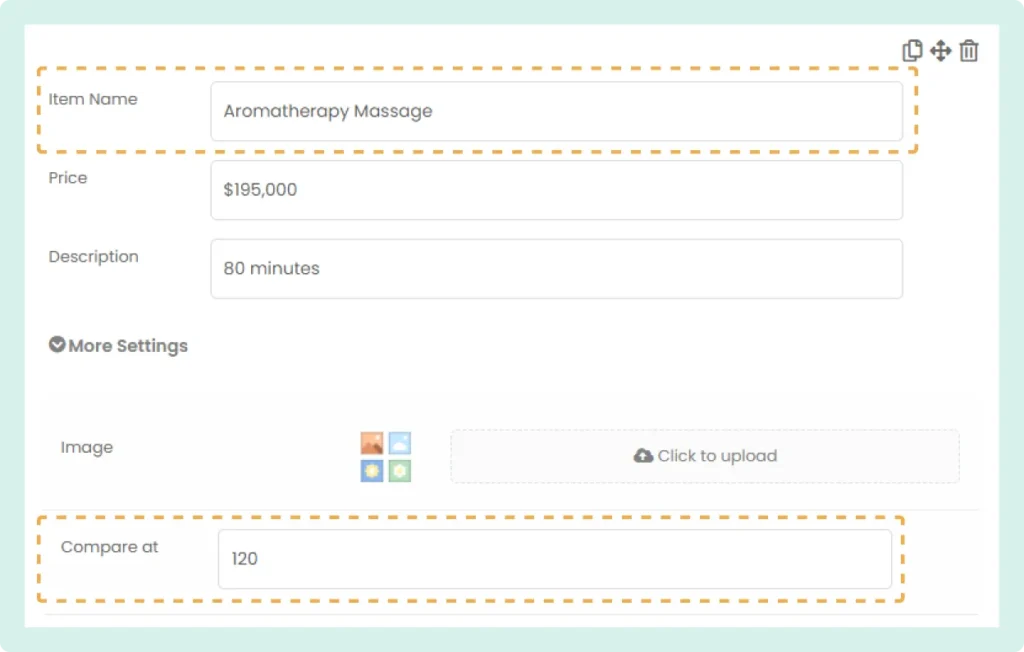
Back-end

Compare At Price Feature Backend

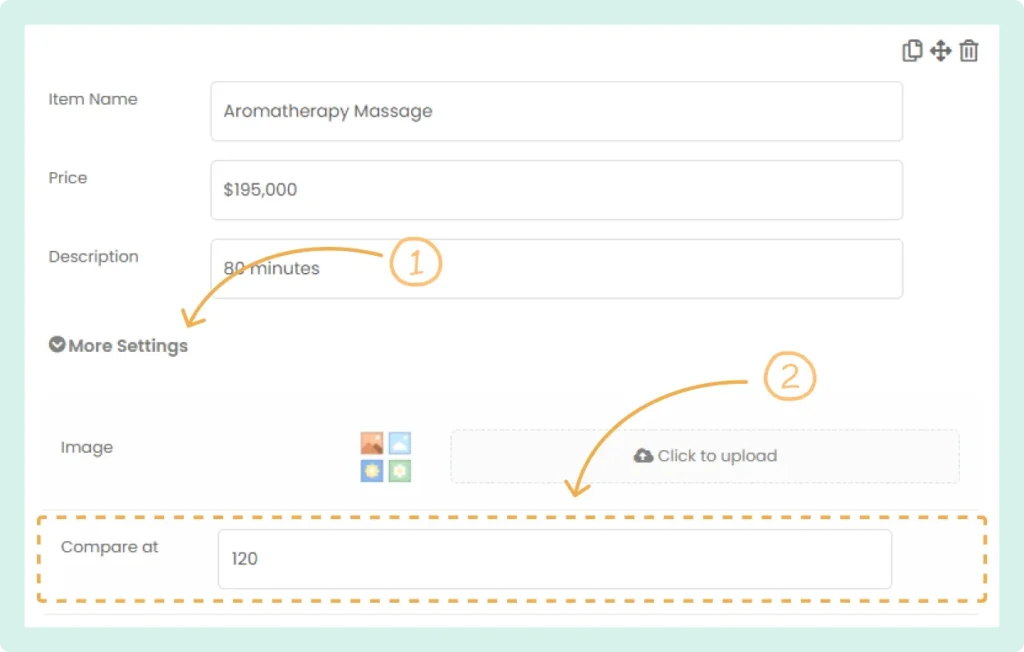
How to Activate & Use This Feature

1. Locate the Item

Within the price list builder, find the item you want to add a comparison price to.

2. Open More Settings

Click on “More Settings” for the selected item. 

3. Set the Comparison Price

In the “Compare at” field, enter the comparative price you want to display. 

Compare At Price Feature Settings

4. Save Changes

Click “Save” to apply the changes. 

Table of contents

Build Beautiful Price Lists with WordPress

Create professional price lists, restaurant menus, and service catalogs in minutes. Drag & drop builder, mobile-friendly, QR code ready. Trusted by spas, salons, restaurants, and 2,500+ businesses worldwide.